My Insane Meno Brain – 03 – It’s NaPodPoMo Month!
[powerpress]
[powerpress]
[powerpress]
[powerpress]

Tune into our latest podcast episode where we delve into the merging of digital and fiberarts with AI tools like Dalle and ChatGPT. Discover how I've transformed rural Ontario landscapes into vibrant fiberarts, tackled website design challenges for my new store, Beyond the Skein Merch, and preparing for an upcoming fiberarts exhibit at the World Building Expo on goBrunch. It's all about using technology to expand creative boundaries and bring artistic visions to life. Join us for a journey of innovation and inspiration!
[powerpress]

This is where we dive into how our toughest times shape the art we create. We’re talking real talk about the ups and downs of creativity, inspired by our own struggles and triumphs.
Whether you’re looking for inspiration or just curious about the creative process, you’re in the right spot. Let’s explore together how every challenge can spark something amazing.
Grab a cozy seat, and let’s get started!
Learn how to share:
The Fiberarts Community is open and ready for you! Sign up for the Beyond the Skein newsletter to get all the details about our Grand Opening.
Check out tutorial #1 on the Fiberarts Community page—it'll guide you into the space and show you how to navigate from room to room.
Let's dive into using those cool tools I mentioned! By the end of this post, you'll be able to Use the Circle Cam and the Presenter Cam. You'll be sharing your screen, Google Docs,and files like a pro with your fellow Fiberartists.
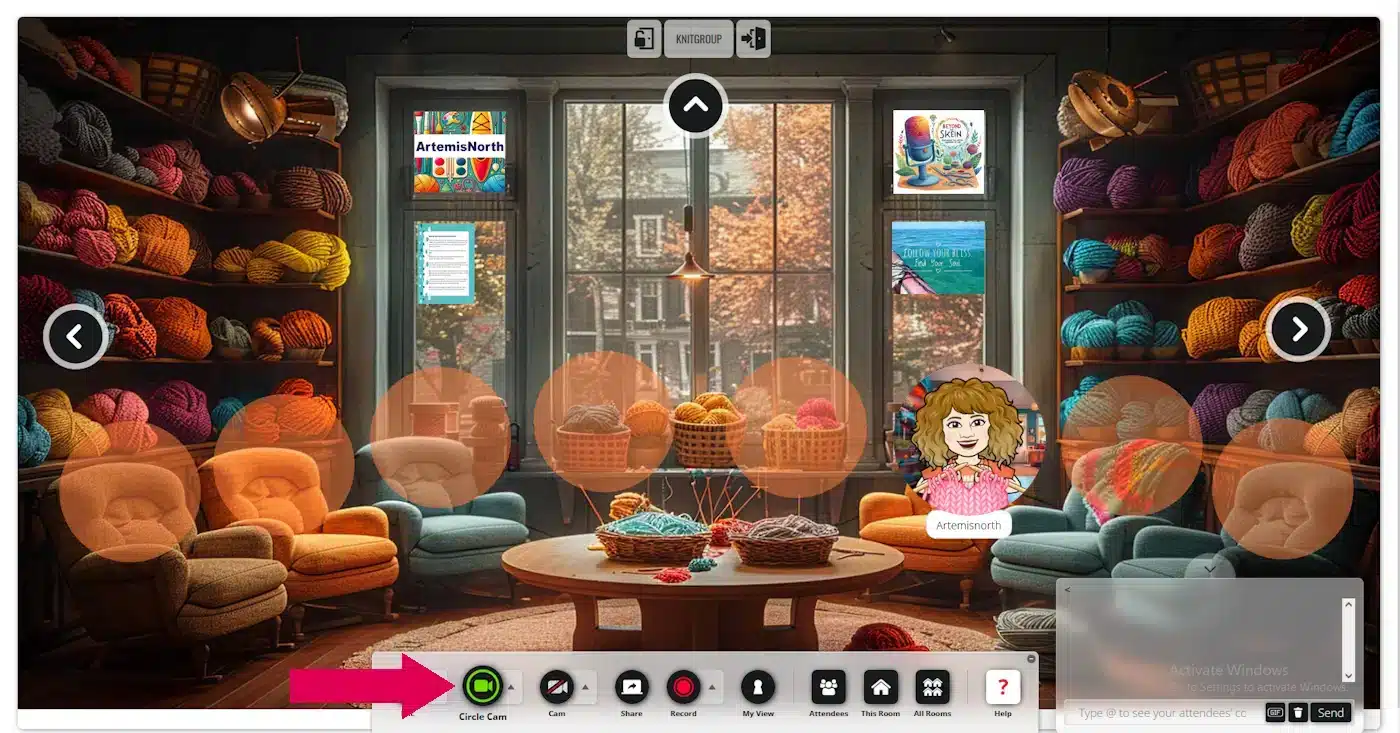
I'm really excited about the "Presentation Cam"! It's such a useful tool. Recently, a friend and I used it in the Whisperspace to work out a new stitch together. It was fantastic—I could see her work and she could see mine, which helped us figure it out in no time! I think you'll find this feature incredibly handy.
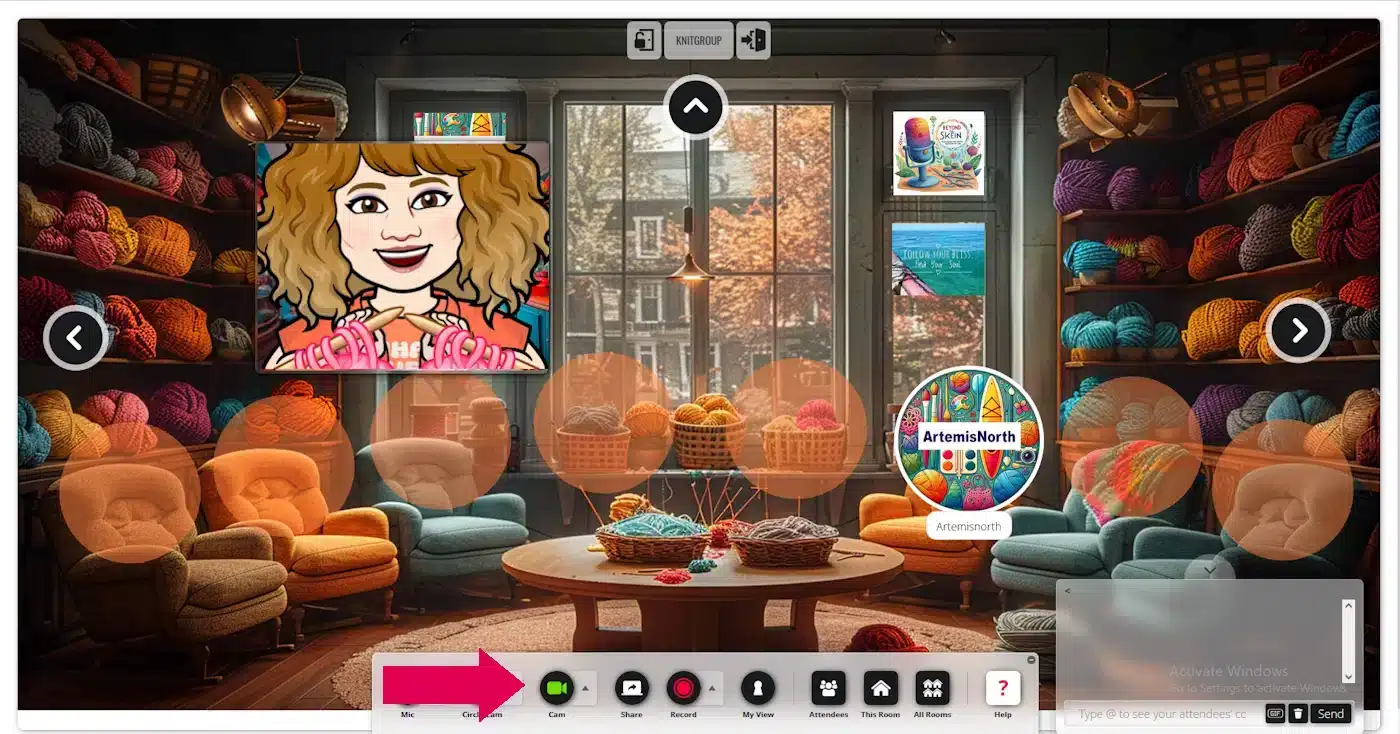
To deactivate the presenter cam, simply click on the "Cam" button once more.
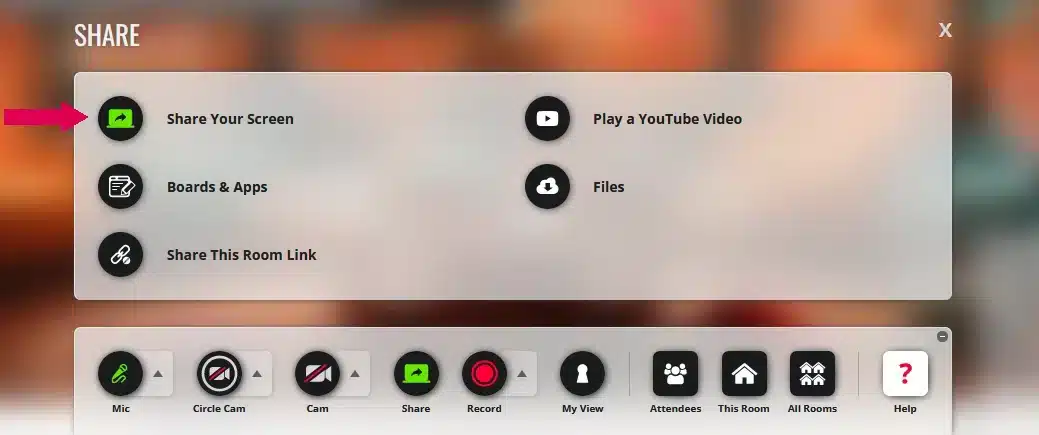
Please be aware: Your toolbar will have fewer items than mine, as I am the administrator.
Next, click on "Select window or screen." A drop-down menu will appear, showing all the screens or apps available to you. For example, if you want to share a picture you're working on in PaintShop Pro, just click on that option.
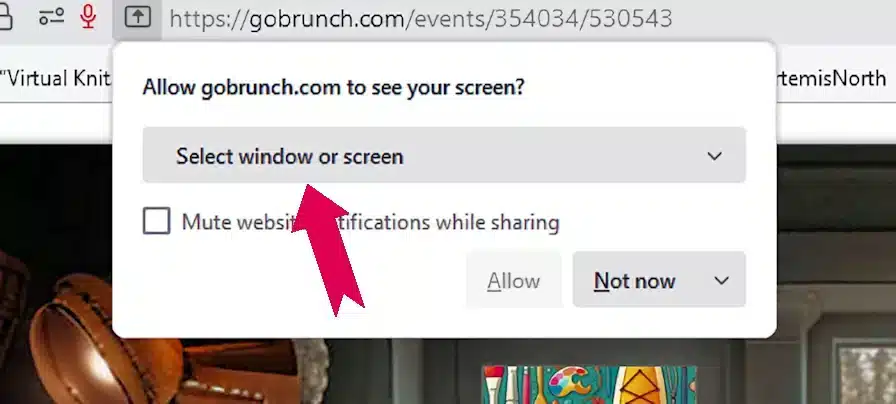
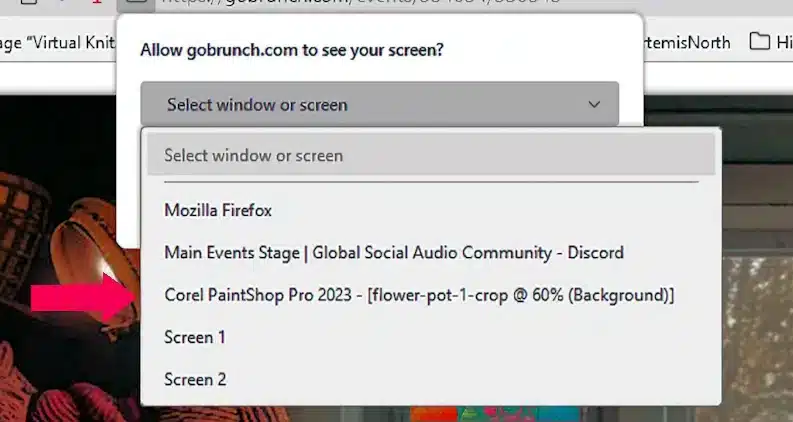
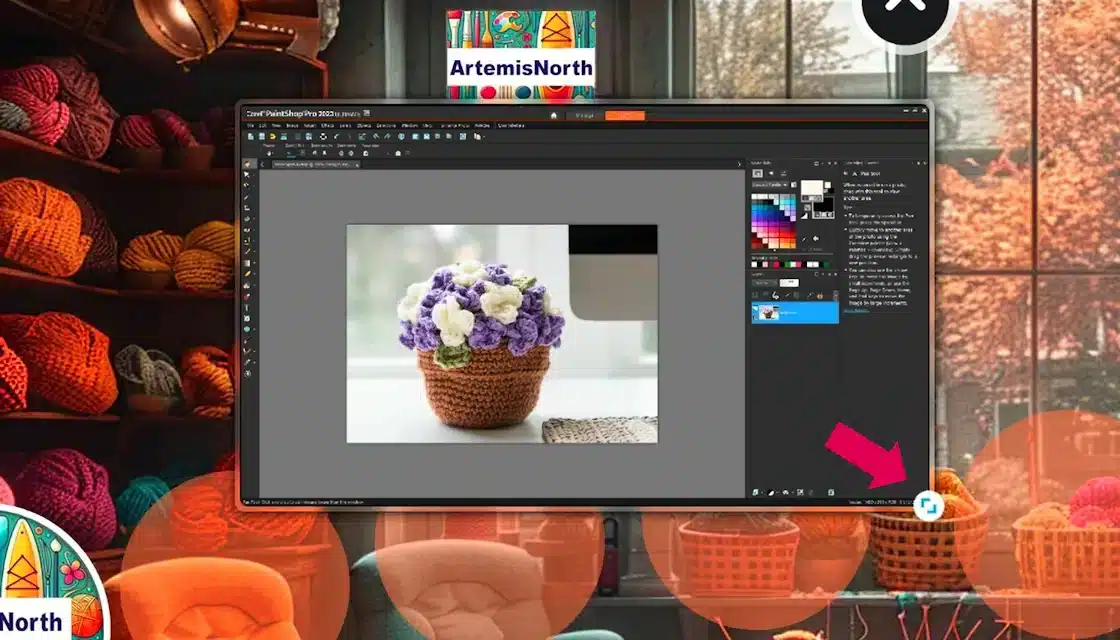
To stop sharing your screen, click the “Share” circle once more, and it will deactivate.
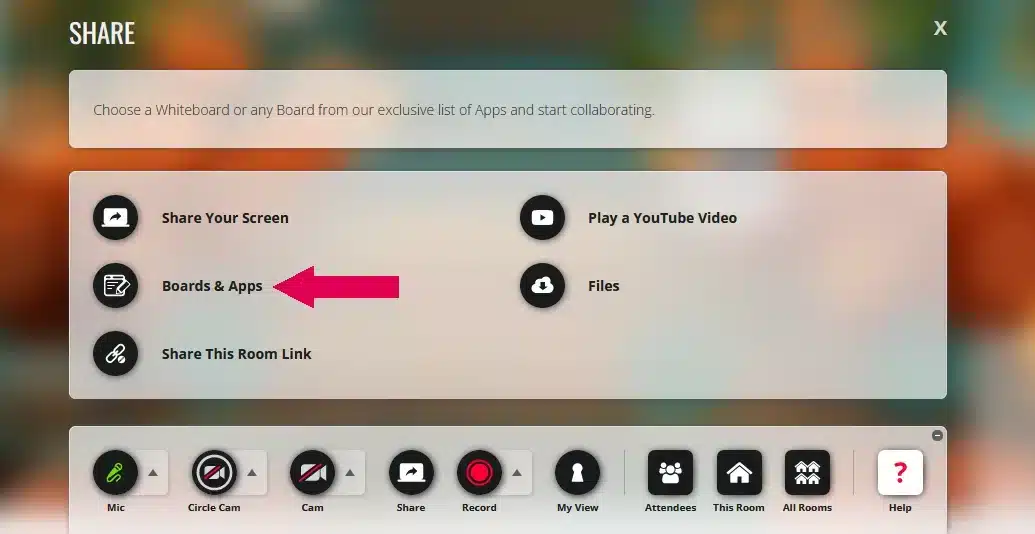
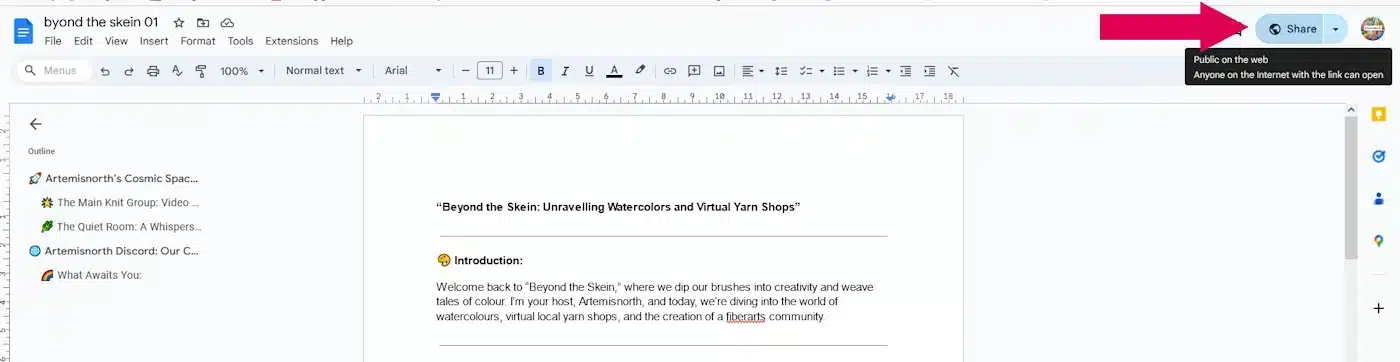
Please remember: before you can share Google Docs, spreadsheets, and other files, they need to be set to public sharing. Log into your google docs account, click on the document you want to share. You can adjust the visibility settings by clicking on the "Share" button in your Google Docs as shown by the pink arrow.
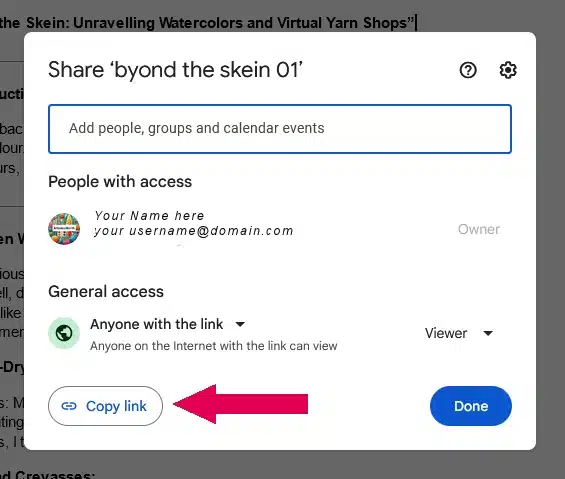
A small window will pop up. Below your name and email address you will see the "General" heading with a drop down menu below. Click on the menu and choose "Anyone with the link". You've just set your document to pubic but only people with the link can see it. (This can easily be reversed by logging into google docs and using the "Share" button.
Simply click on the "Copy Link" button and then the blue "Close" button to exit this window.
Return to the Virtual Knitgroup and click on "Docs" as indicated by the pink arrow. You can also share "Slides", "Sheets" and "Forms"
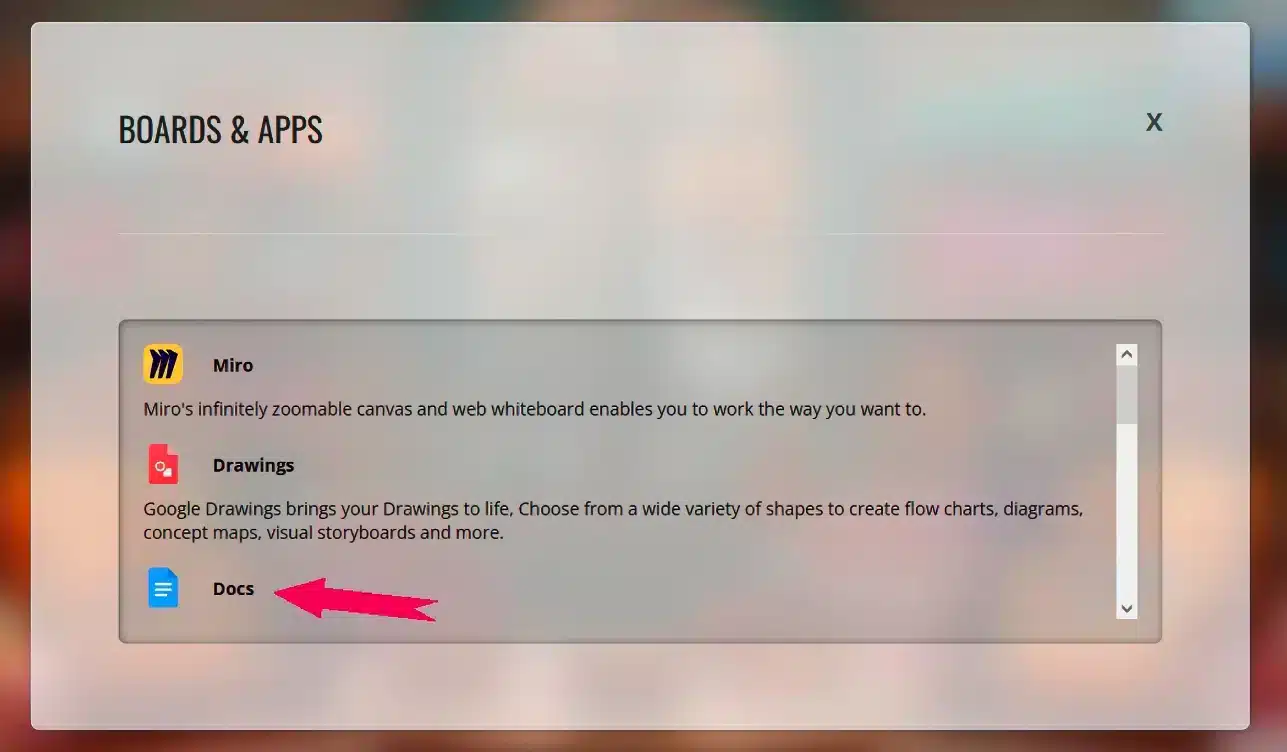
Next, insert your Google Doc link into the field marked by the pink arrow and click "Open Docs."
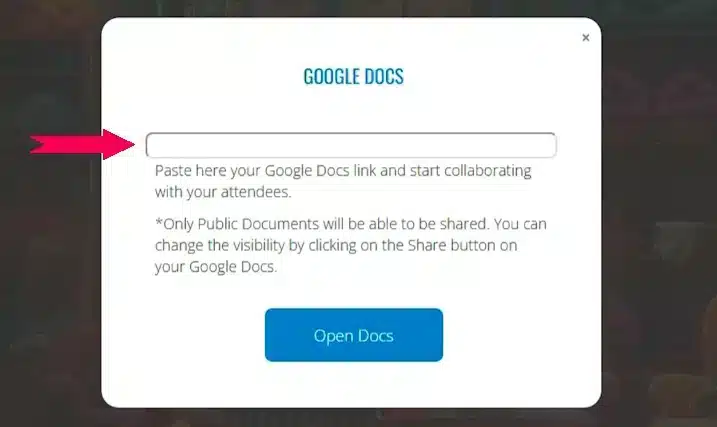
One of my favorite features when sharing documents is the ability to view them in full screen! Simply click on the double arrows marked by the pink arrow to expand the document.

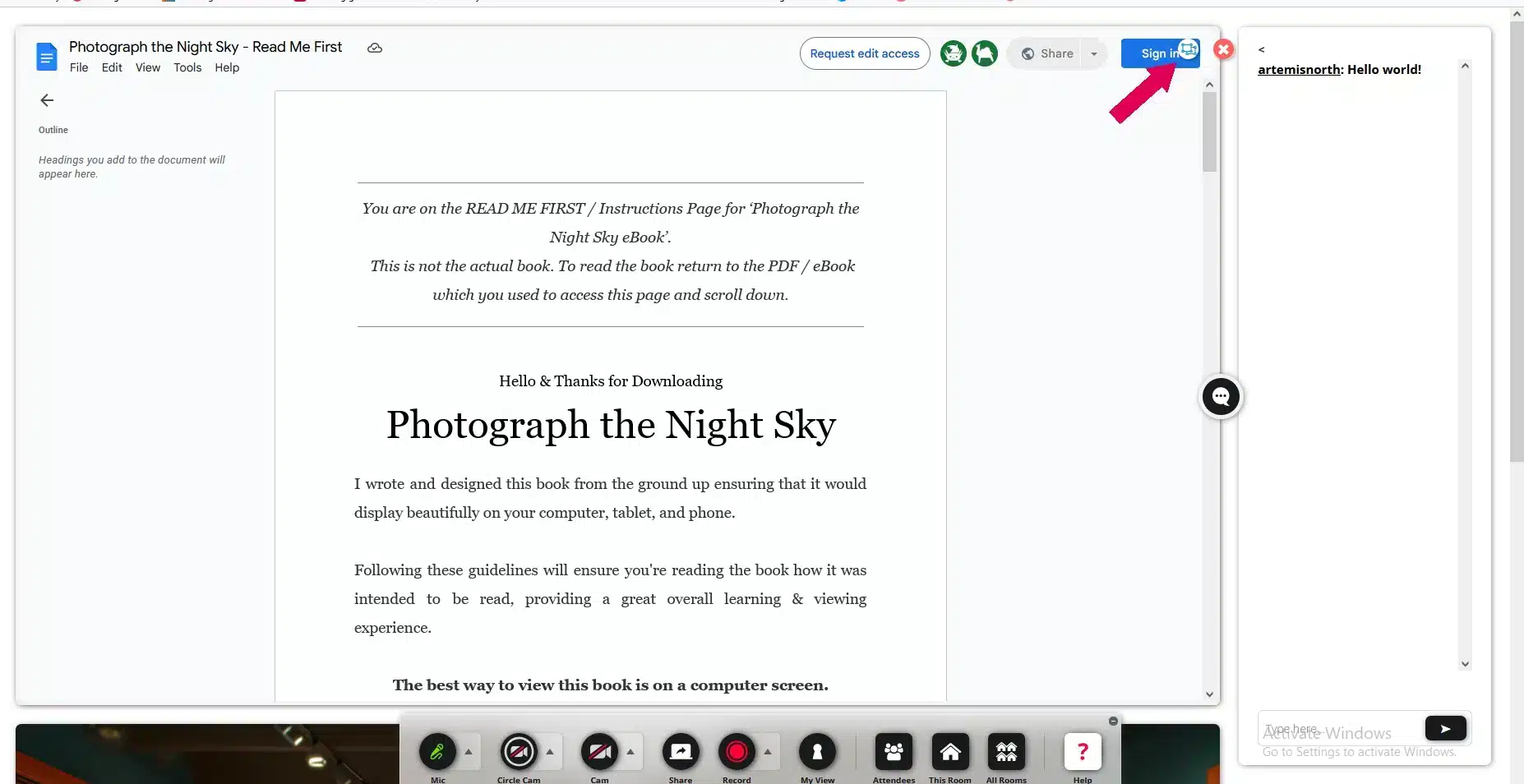
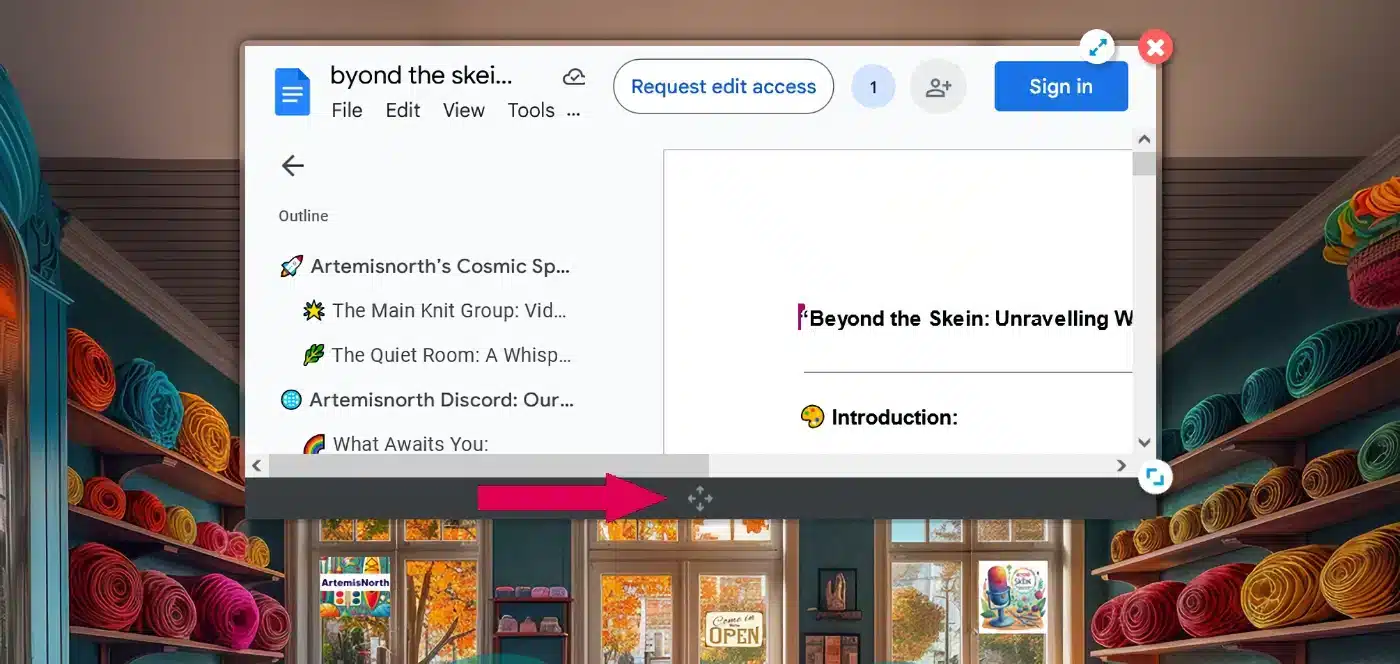
To exit full screen mode, just click on the small circle with a box inside, marked by the pink arrow, and the view will revert back to the smaller screen within the room.
To stop sharing your google doc, click on the "Share" circle to turn it off.
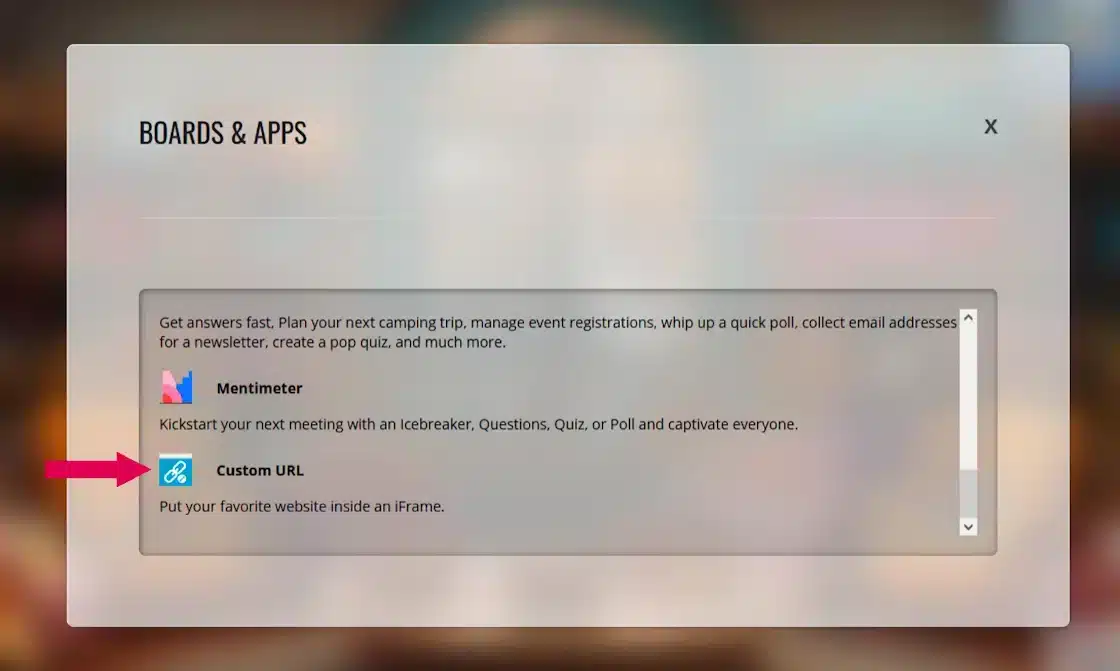
Next, scroll down a little and click on "Custom URL" as indicated by the pink arrow.
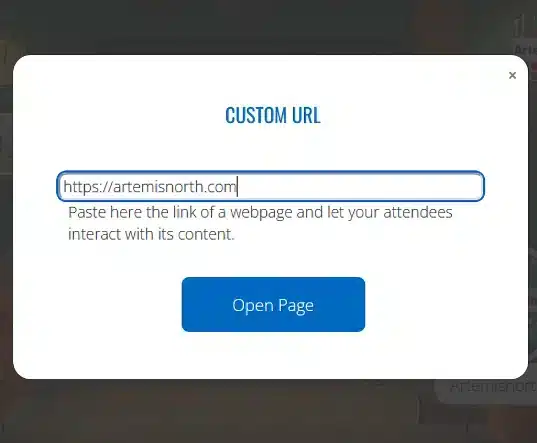
Paste or type the website URL into the box.
And there you are, sharing a fully interactive website. Have fun!
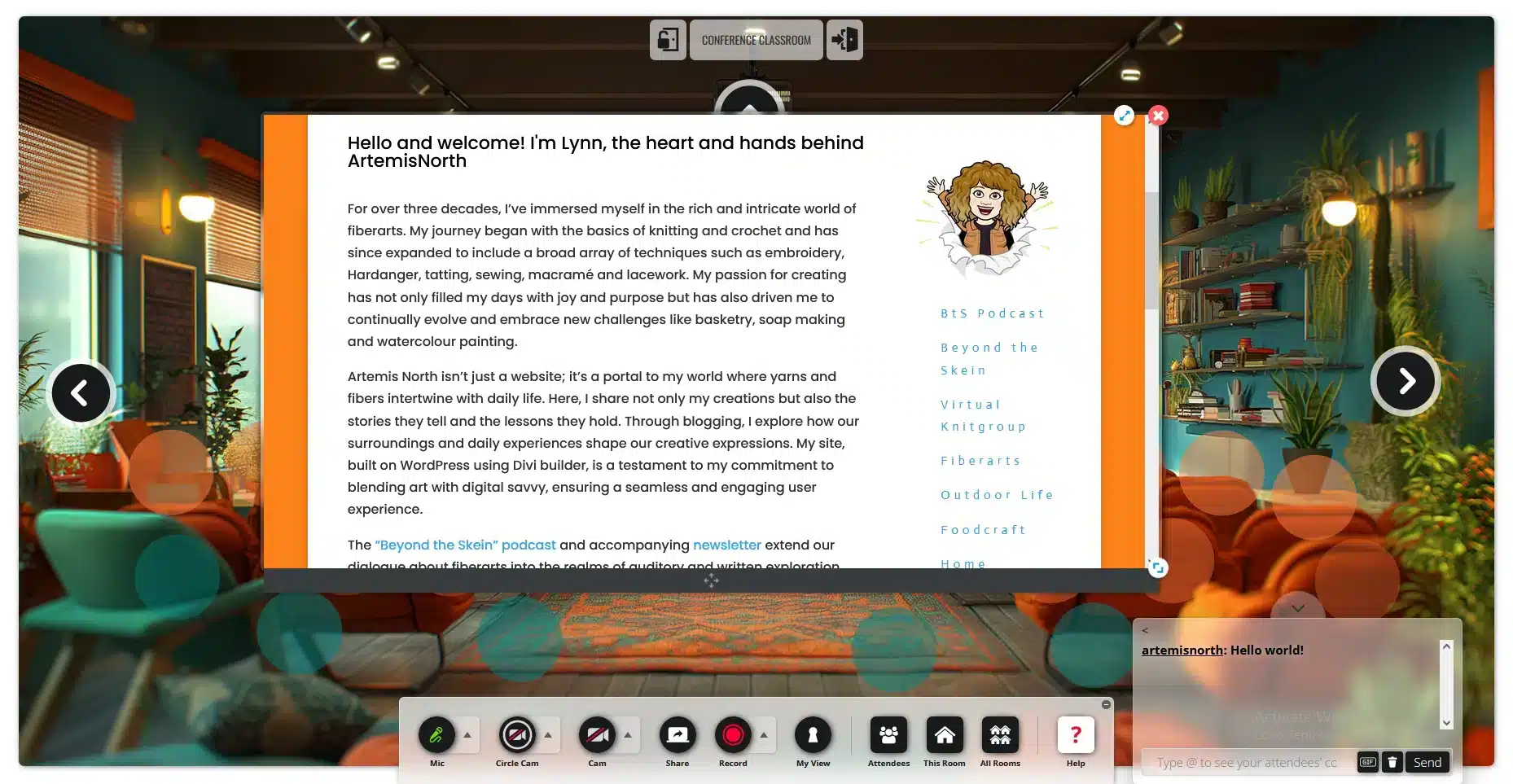
To stop sharing your website, click on the "Share" circle to turn it off or the little red "x" at the top right of the window.
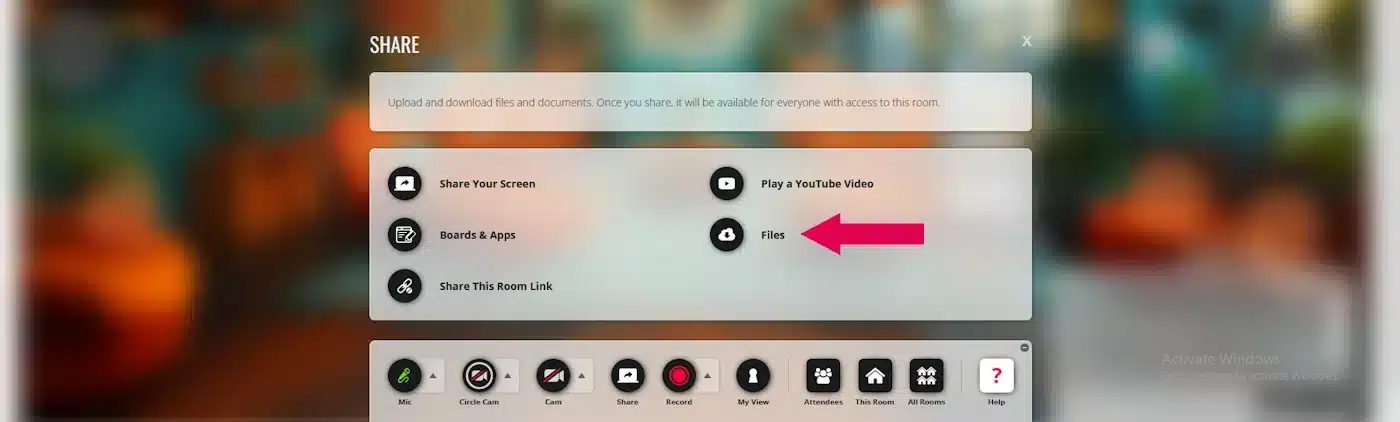
To share your files, just click on the “Share” circle like before. When the menu appears, select “Files,” which is shown by the pink arrow.
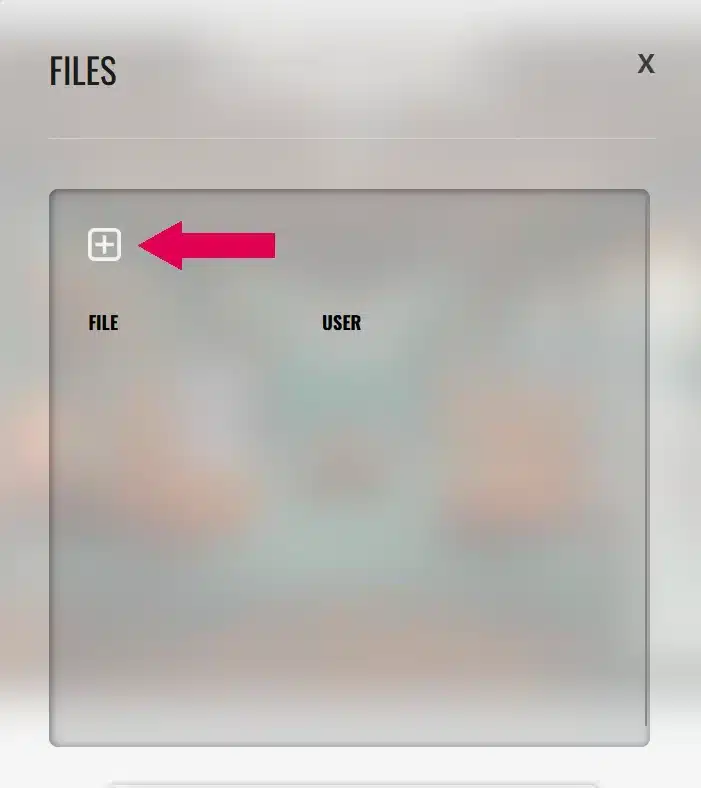
To add a file, click on the white box marked with an X, as shown by the pink arrow.
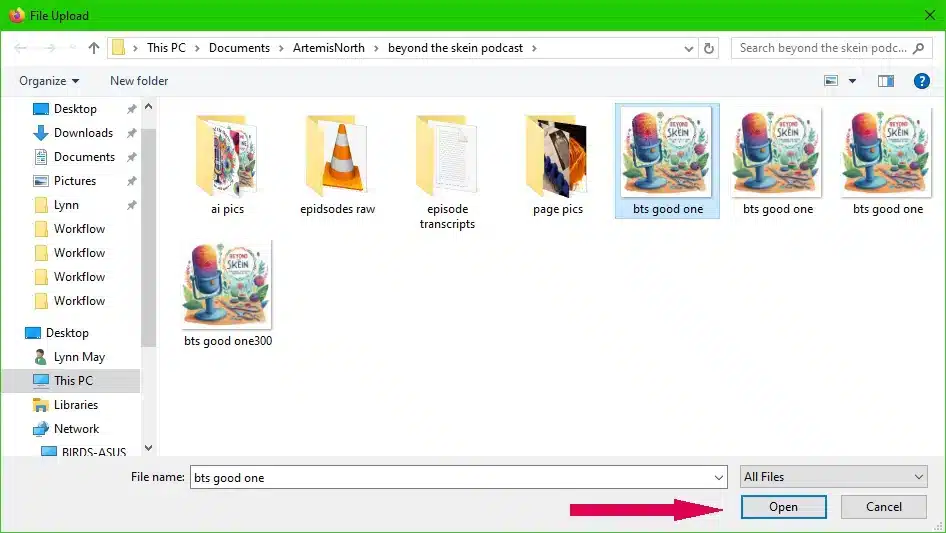
Choose which file you want to upload and click, "Open" as shown by the pink arrow.

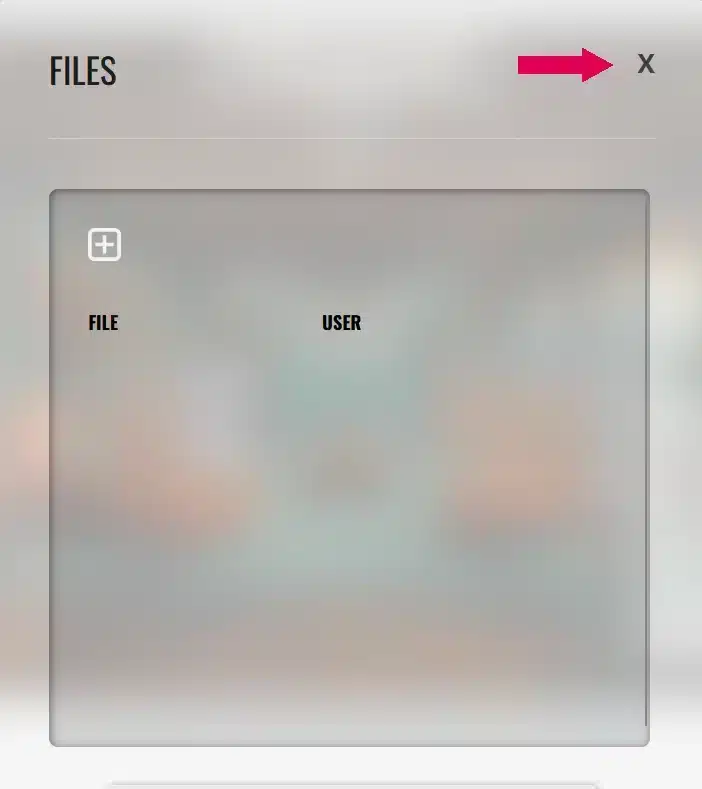
To close the file sharing window simply click the "X" at the top right of the window as shown by the pink arrow.
I think we are all going to have some fun!!
Until next time friends...

The scent of pine needles, the crackling of a campfire, the cozy shelter of a tent... childhood camping trips in Ontario Parks hold a special place in my heart. From those rustic "vault toilets" to the thrill of exploring new parks like Balsam Lake or Algonquin, the memories still make me smile.
As a kid, I remember those dark brown “vault toilet” buildings—the ones that required a flashlight at night. But you know what? It didn’t matter. WE WERE CAMPING! Balsam Lake, Kill Bear, Algonquin, Bonecho, and Sharbot Lake—all these names evoke a sense of adventure and freedom.
As an adult, I appreciate Ontario Parks even more. The clean bathrooms (with real showers!), spacious campsites, and central amenities make them ideal for families. Growing up near Presquile Provincial Park was a dream – it was our own giant, nature-filled backyard!
But our absolute best family camping adventure was at The Pinery Provincial Park. My teens had enough space for independence, yet we were close enough to share laughter around the campfire, creating those forever moments.
Now, years later, my husband and I have the time to camp every summer. We bought a new tent at season’s end for half price—a sign, perhaps, that it was time to bid farewell to our trusty old Woods tent.


Setting Up Camp: Tarp Tales and Rainy Smiles
Every year, like clockwork, we unfold our camping ritual. Last year, a friendly gentleman strolled by as we were setting up. He glanced at our tarp and quipped, “Overkill, isn’t it?” We simply nodded and replied, “We’ll see.”
A few days later, there he was again—this time using a beach umbrella to shield himself from heavy rain. Meanwhile, we sat cozy and dry under our trusty tarp, sipping morning coffee. With a friendly “Good Morning,” we exchanged knowing smiles. He nodded back, perhaps a tad sheepishly, and continued on to the bathroom.
The tarp is always our first order of business. We play a game of “which trees to tie around” as we set it up. Over time, we’ve fine-tuned our technique. One stormy year, we lost a couple of grommets, but we adapted. And those adjustable, good-quality bungee cords? They’re our secret weapon, working seamlessly with each rope. Oh, and let’s not forget the poles we recycled from an old screen room tent—they’re part of our well-oiled setup. When we land our goal is setting up and hitting that sandy beach!
If you enjoy the sound of the rain on a tarp while you enjoying your morning camp coffee this video is for you!
Ontario Parks are like a well-loved book with extra chapters. Each one I’ve visited offers the same warm services, and then—surprise!—they unveil their own special magic. There's a sense of peace that washes over me the moment I step onto their trails, a feeling of being both grounded and uplifted by the natural world. The vibrant colours, the symphony of birdsong, the textures of moss and stone – they all speak to a part of me that craves that wildness.
Until next time friends...